Loading...

Upgrading from Windows 7 or 8? You'll love Windows 10

windows 10 start menu small


Are you a Windows 8 user? Still using Windows 7? Either way, you'll love Windows 10.

Over the six years since Windows 7 was released, Microsoft has made its PC operating system far more intuitive and powerful by packing it with tablet- and smartphone-like features.
A lot of those features debuted with Windows 8, but they still weren't working perfectly.
Microsoft went back to the drawing board with Windows 10 to develop an operating system that will be familiar to Windows 7 users but doesn't compromise on modern features. (Note: You're not crazy -- Microsoft skipped Windows 9 altogether.)
Windows 10 has a Start Menu, just like Windows 7 -- only better.
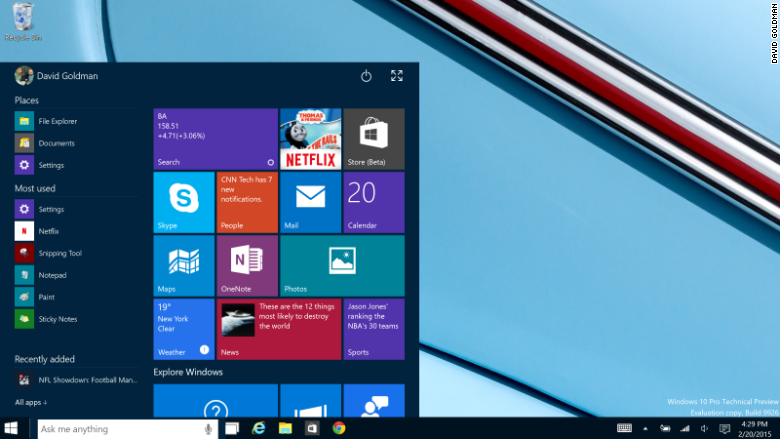
On the left Start Menu column, you'll find a list of your most used apps, most visited folders and recently added software. There's also a button that will show you all your apps in a single list.
On the right part of the Start Menu, there is a grid of app tiles that you can arrange however you like. The "live" tiles will show you updates, such as the latest stock prices, the last show you were watching on Netflix, social media updates, weather, news and sports scores.
windows 10 start menu large
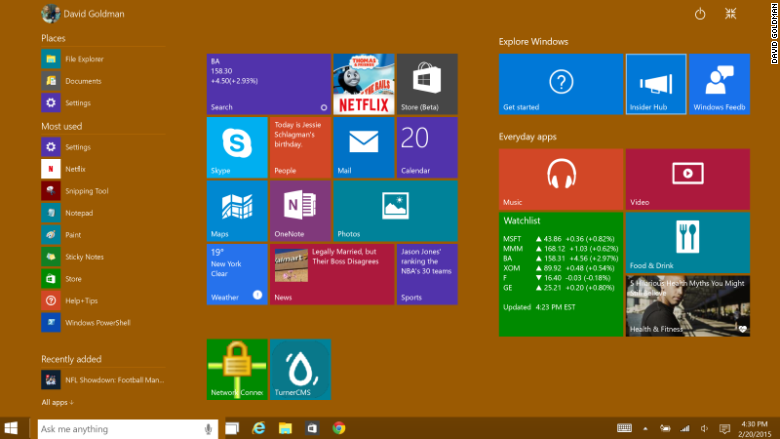
If you want, you can take the Start Menu full-screen by clicking the "expand" button -- it's kind of like having a tablet or smartphone screen for a desktop. But, crucially, it's only there if you want it. The default is the familiar Windows desktop experience.
Windows 10 provides some design changes that Windows 7 users will welcome. For example, taskbar icons glow at the bottom when they are opened, but only the app icon that is currently being used is completely highlighted. In Windows 7, all open apps are highlighted, confusingly.
windows 10 files
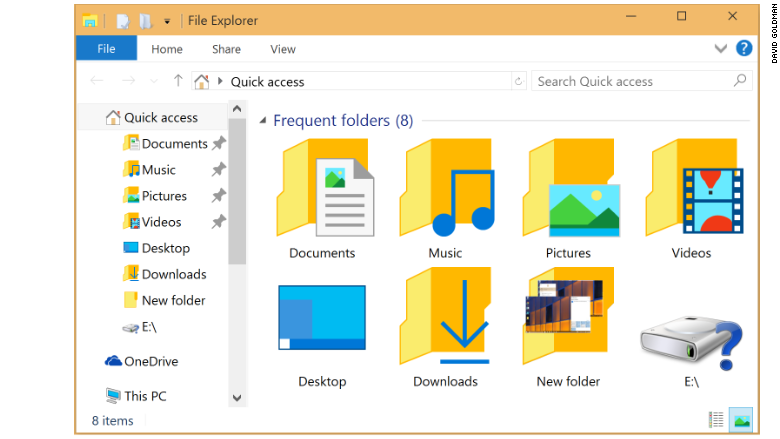
Folder icons are far less glitzy and much more intuitive in Windows 10, making it much easier to view the contents of the folder at a glance before you open it. Gone is the confusing and redundant "libraries" directory. The task manager is also much simpler to use.
Windows 7 users should be unafraid of upgrading when Windows 10 hits store shelves later this year. There is hardly any learning curve, and the new bells and whistles alone are definitely worth checking out.
Related: Microsoft fixes a serious 15-year old bug
Better than Windows 8: So what if you've upgraded to Windows 8? Here are the big differences you'll notice in Windows 10.
Windows 8's odd tablet-style layout was confusing to Windows die-hards. You won't find Windows 10 difficult to use. Windows 10 boots straight to the desktop, and it stays there.
If you have a convertible laptop or Windows tablet, Windows 10 has a "tablet mode" that recognizes when there is no keyboard or mouse present. But rather than make two separate tablet and desktop interfaces like Microsoft did for Windows 8, Microsoft chose to make the Windows 10 desktop and apps more finger-friendly for tablet users. They only morph a little to fit the device they're running on.
So if you download a "modern" app from the Windows Store, it will run in a window, just like standard Windows software. The only difference is that it has a diagonal arrow button between the "close" button and the "expand" button at the top right of the window. That will take the app into "tablet mode," going full-screen. But you can easily get out of that by moving the mouse to the top of the screen and clicking the button again.
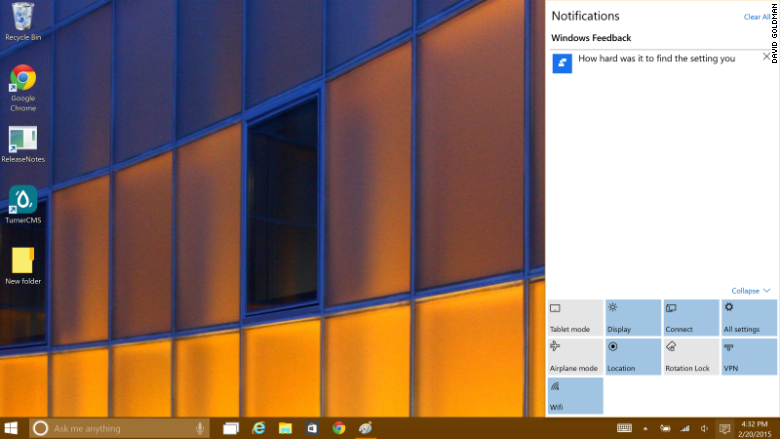
windows 10 action center
Windows 8's unhelpful charms bar has been replaced with the Windows 10 action center. There, you get notifications and access to handy quick settings, such as brightness controls, airplane mode, Wi-Fi and tablet mode toggles.
windows 10 alt tab
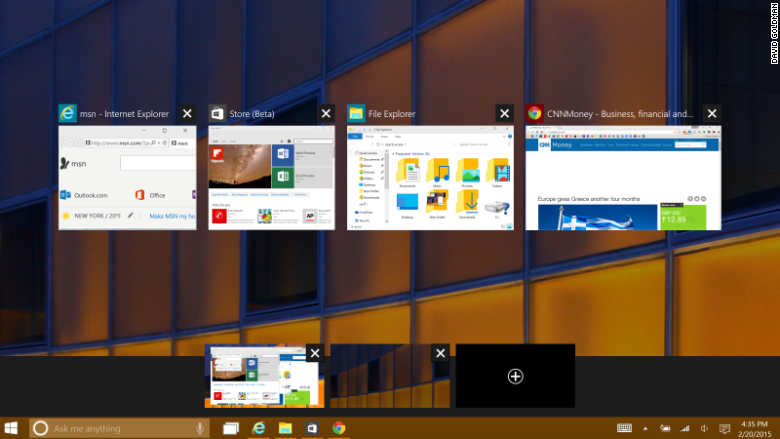
Also different is Windows 8's app-choosing feature, that let you go back to the last-used app by swiping in fro the left. It has been replaced with a far more useful display of all your open apps on a single screen.
Touchscreen users can access the action center with a swipe in from the right, just as they can view all the open apps by swiping in the from the left. But, mercifully, Windows 10 put buttons for both on the taskbar so mouse and keyboard users won't accidentally launch those features by putting the cursor too far to the left or right.
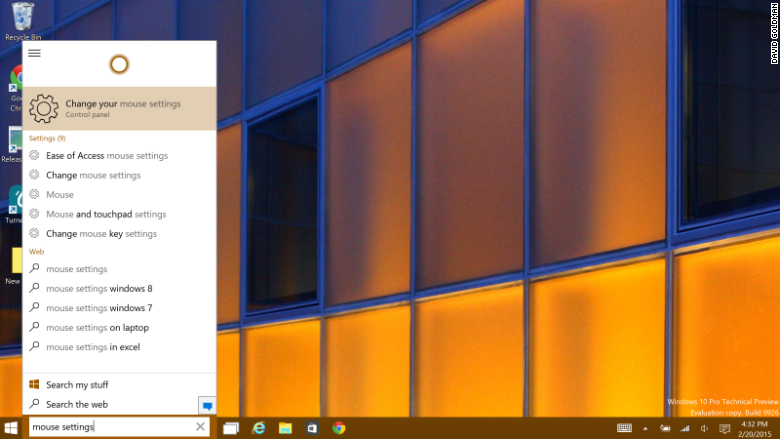
windows 10 cortana
Window 10's New Features: Windows 10 isn't just about correcting Windows 8's mistakes, though. There are new features that Windows 8 users will love.
The coolest new feature is Cortana, Windows 10's version of Siri, which appears net to the Start button on the taskbar.
"She" has a sense of humor ("I know Siri, but I don't KNOW her, know her, if you get what I mean," Cortana says in response to an obvious question). But in addition to barking voice commands and queries, the search feature is genuinely helpful.
It will search your apps, the Windows Store, the Web and your files to answer search queries. It's a super-quick way to launch an app (just start typing and hit Enter when the app appears). And like Windows 8's outstanding search function, Cortana can help you access deeply hidden settings with a few keyboard strokes, helping you avoid hunting and pecking through control panel settings.
Windows 10 also comes with multiple desktops, which is helpful for cleaning up a messy workspace.
I have been testing the preview version of Windows 10 for a few weeks. There are plenty of things not to like, including the fact that you still can't access all your settings from the "settings" app. We'll cover more of the hits and misses in a fuller review once Microsoft gets closer to releasing Windows 10.
But the preview has shown me enough to confidently say that Windows 10 will be a breeze to use, a welcome change for both Windows 7 and Windows 8 users, and a big hit for Microsoft.

Here's What Happens When A CD Shatters Into Smithereens In Slow-Motion


With streaming music and digital downloads taking over, what to do with old CDs? Use them in a science experiment, of course!
Gavin Free and Dan Gruchy, also known as "The Slow-Mo Guys," have done just that -- spinning CDs at high speeds and capturing in slow-mo the incredible moment when they shattered. Just check out the video above.
(Story continues below GIF).
The duo used a vacuum motor to get one of the discs spinning at a speed of 23,000 RPM -- and then used an ultra-high-speed camera to film the CD explosion at a rate of 170,000 frames-per-second.
"That's the fastest thing we've ever filmed," Gruchy says in the video, "and the fastest frame rate as well."
See ya, CDs!

Firefox 39.0 Comes with New “Reader View” Feature

NOTE: This article is updated whenever some interesting stuff is found in Nightly build ofMozilla Firefox web browser. So keep checking this page regularly.
Download Links: Nightly | Aurora | Developer Edition | UX (latest UI improvements)
UPDATE 78:
Today I noticed a new feature "Reader View" in the latest Nightly 39.0 build. Mozilla has added 2 new buttons in the addressbar:
  • Enter Reader View
  • Add page to Reading List
http://media.askvg.com/articles/images5/Mozilla_Firefox_Reader_View_List_Buttons.png
You can use these buttons to view any webpage content in distraction-free reading mode where only the text of the main article is shown without any extra thing. In the Reader View/Reading Mode, you can change the font style, font size as well as the background color.
http://media.askvg.com/articles/images5/Mozilla_Firefox_Reader_View_Mode.png
You can also add any website to Reading List to save them and read them later.
UPDATE 77:
Just noticed a new option "Play DRM Content" in the latest Nightly 39.0 build.
Play_DRM_Content_Mozilla_Firefox_Preferences.png
UPDATE 76:
The latest Nightly 38.0 build comes with an improved About:Config page UI.
Mozilla_Firefox_New_About_Config_UI.png
It looks like a modern skin for the about:config page.
Thanks to our reader "Alan" for the update...
UPDATE 75:
The latest Nightly 37.0 build comes with a new improved Search UI. When you search for a term using search box, you get a new search interface as shown in following screenshot:
Mozilla_Firefox_New_Search_UI.png
The new search interface is called One-Click Search. The search interface has been improved as well as some new buttons for different search engines have been added below the search suggestions.
A new Search tab has also been added into Firefox Preferences page which allows you to change default search engine. You can also show or hide desired search engine buttons which are shown below the search suggestions in new search interface.
UPDATE 74:
A few day back, in UPDATE 66 we told you about a new feature "Invite someone to talk" which was added in Nightly 33.0 build.
Now the feature has been improved a lot in the latest Nightly 36.0 build. The feature has been renamed to "Firefox Hello" and comes with a brand new UI.
Mozilla_Firefox_Hello_Feature.png
Once you click on its toolbar icon, you get a call URL to share with your friends. You can also change your chat status to Available or Do Not Disturb.
UPDATE 73:
The latest Nightly 35.0 build comes with a new toolbar button called "Forget Browsing History" which helps users in quickly deleting cookies and browsing history of selected time period. At the moment users can select from 3 given choices: Last five minutes, Two hours and 24 hours.
Forget_Browsing_History_Button_Mozilla_Firefox.png
UPDATE 72:
The latest Nightly 35.0 build comes with working e10s functionality. Mozilla has started testing ofElectrolysis (e10s in short) functionality in the latest Nightly build.
When you launch the latest Nightly 35.0 build, you get following notification in addressbar to enable e10s functionality:
Mozilla_Firefox_E10S_Multi_Process_Notification.png
After restart, you'll notice that tab titles are shown as underlined in e10s mode to distinguish it from normal mode:
Mozilla_Firefox_E10S_Multi_Process_Mode.png
You can also enable or disable Electrolysis aka e10s functionality using Firefox Preferences window:
Mozilla_Firefox_E10S_Multi_Process_Option.png
Thanks to our reader Kyle for the update...
UPDATE 71:
In latest Nightly 34.0 build, Mozilla has added a few built-in themes to customize Firefox appearance. Users can apply these themes using Customize screen:
Firefox_Builtin_Themes.png
UPDATE 70:
In latest Nightly 34.0 build, Mozilla has moved "Always check to see if Firefox is the default browser on startup" option to General tab of Preferences window.
Default_Browser_Option_Firefox_General_Preferences.png
UPDATE 69:
Recently we told you about "Share This Page" button which was added to Nightly 33.0 toolbar but at that time the button was not working. It was just a dummy button with no functionality.
Now in the latest Nightly 34.0 build, Mozilla team has added functionality to this button. Now when you click on "Share This Page" button, it allows you to add various social networking website icons such as Facebook, Twitter, Google+, etc to Firefox and then you can click on those icons to immediately share the current webpage on those websites.
Share_This_Page_Feature_Firefox.png
If you can't see the "Share This Page" button in Nightly toolbar, check the button in Australis Menu.
UPDATE 68:
The latest Firefox 34.0 Nightly build comes with a new menu to customize "New Tab" page appearance:
Mozilla_Firefox_New_Tab_Page_Customization_Menu.png
As you can see in the above image, it allows you to select New Tab page look from following 3 options:
  • Enhanced
  • Classic
  • Blank
Thanks to our reader "Kyle" for the update...
UPDATE 67:
The latest Firefox 33.0 Nightly build comes with a new button "Share This Page" in toolbar:
Share_This_Page_Toolbar_Button_Firefox.png
Currently the button is not working. Its always remains disabled. It seems Mozilla has disabled the button for some reasons and the button will start working in upcoming Nightly builds.
UPDATE 66:
Mozilla has added a new toolbar icon "Invite someone to talk" in the latest Nightly 33.0 build. You can click on the icon and get a call URL to invite a friend to talk.
Invite_Someone_to_Talk_Call_Icon_Firefox.png
UPDATE 65:
The latest Nightly 32.0 build comes with an improved iconized context menu which shows basic icons such as back, forward, refresh, bookmark at the top:
New_Firefox_Context_Menu_with_Icons.png
Thanks to our reader "TheAslan" for the update...
UPDATE 64:
Mozilla has put a new option to enable or disable Title Bar in the latest Nightly 29.0 build.
Enable_Mozilla_Firefox_Titlebar.png
UPDATE 63:
Mozilla has added a new option in the latest Nightly 28 build to directly launch Firefox in Windows 8 style Metro mode as shown in following screenshot:
Firefox_Launch_Metro_Option.png
UPDATE 62:
The latest Nightly 28 build comes with 2 new options in toolbar context menu:
  • Add to Menu
  • Remove from Toolbar
Add_Remove_Firefox_Toolbar_Buttons.png
These new options appear when you right-click on titlebar or toolbar.
"Add to Menu" option adds the toolbar button to "Customize and Control" menu previously known as orange Firefox button.
"Remove from Toolbar" option deletes the button from toolbar.
Nice and useful addition by Mozilla.
UPDATE 61:
The latest Nightly 28 build comes with a new Australis UI.
Mozilla_Firefox_AustralisUI.png
Check out our exclusive review of Australis UI:
UPDATE:
Mozilla has updated the "New Tab" page in the latest Nightly 17.0 build. Now a new "preload" function has been introduced which makes the "New Tab" page faster by preloading it in the background.
Currently the feature is under testing and users will need to manually enable it. To enable preload feature:
1. Open about:config page and type preload in the Filter box and look for following boolean key:
browser.newtab.preload
2. The entry "browser.newtab.preload" would be set to false. Double-click on it or right-click on it and select "Toggle". It'll set its value to true.
It'll immediately enable preload function for "New Tab" page and it'll load much faster than before.
UPDATE:
Latest Firefox 14.0 Nightly build comes with new re-designed "Download Manager". Now when a download starts, a new "Downloads" icon appears in Navigation toolbar which shows progress of download. Alternatively you can access the download manager using "Ctrl+J" keyboard shortcut.
PS: If you don't like this new download manager and want to switch back to old one, you can use following steps:
1. Open about:config page and type ToolkitUI in the Filter box and look for following boolean key:
browser.download.useToolkitUI
2. The entry "browser.download.useToolkitUI" would be set to false. Double-click on it or right-click on it and select "Toggle". It'll set its value to true.
Now you'll be able to enjoy the classic download manager in a separate window instead of the new one.
UPDATE:
The latest Firefox 14.0 nightly build comes with new Script Debugger which is disabled by default. You can enable it using following steps:
1. Open about:config page and type debugger in the Filter box and look for following boolean key:
devtools.debugger.enabled
2. The entry "devtools.debugger.enabled" would be set to false. Double-click on it or right-click on it and select "Toggle". It'll set its value to true.
Now you can access this new Script Debugger using "Web Developer" menu or using "Ctrl+Shift+S" hotkey.
Thanks to our reader "Carbonize" for this info...
UPDATE:
The latest Firefox 14.0 nightly build comes with built-in PDF reader. By default its disabled, but you can enable it using following method:
1. Open about:config page and type pdfjs in the Filter box and look for following boolean key:
pdfjs.disabled
2. The entry "pdfjs.disabled" would be set to true. Double-click on it or right-click on it and select "Toggle". It'll set its value to false.
Now whenever you'll visit a webpage containing a pdf file, Firefox will open it in its own built-in PDF reader.
This built-in PDF reader uses HTML5 to display PDF files directly in Firefox browser.
Thanks to our reader "Carbonize" for the update...

Yes, That Extra Storage is Overpriced, But You Should Pay For it Anyway


dont buy 16gb iphones and ipads
It’s a lesson many of us have learned the hard way. Yes, $100 is overpriced for a storage upgrade, but it’s still worth it. The most inexpensive models of smartphones, tablets, and laptops often have too little storage.
Manufacturers want to make their products appear as inexpensive as possible, hence these low-storage models to get customers in the door. Better to buy more storage now than deal with the frustration and micromanagement over the life of your device.

Almost Every Manufacturer Does This

Practically every company does this to some degree. Thanks to the shift to faster-and-smallersolid-state drives, this is even a concern on laptops.
Apple’s 16 GB iPhones and iPads are big offenders here. These devices actually have only about 12 GB to play with, and large apps — especially large games — could be 1 GB or more each. Add in downloaded content, music, high-resolution photos, videos, and more — that space can fill up fast.  Apple’s iOS 8 update required 5 GB of free storage space, which means you could only play with 8 GB of that space on your own or you’d have to update via iTunes or micromanage that storage space. Apple’s 8 GB iPhone 5c is even more constrained
Microsoft offers a 64 GB Surface Pro, and that only offers 37 GB of available space. That may sound like quite a bit but between all your personal data files, applications, cache files, and more, it’s not very much. The space means you may not be able to use some software. There are PC games over 37 GB in size, after all!
The same goes for other devices. Laptops with 16 GB of eMMC storage may be tempting because of how inexpensive they are, but that limited storage means you just can’t install some applications at all — you’re constantly being squeezed for space. Inexpensive Android phones with just a few gigabytes of storage may make fine feature-phone replacements, but you’ll quickly run up against the limitations if you want to use anything more.
The same goes for other devices where the more inexpensive model has a paltry amount of storage — take Nintendo’s 8 GB Wii U, for example. The 32 GB Wii U Deluxe is a better idea. Even if you don’t download any digital games at all, the extra space will give you room to grow for downloading game patches and storing save games.

The Micromanagement Is the Worst Part

The most frustrating thing is the micromanagement. Yes, you usually can live with the base model’s storage limitations. And maybe the lightest users who never install any software or download any files will be fine with that. But you’ll regularly be called upon to micromanage the space.
On an iPhone or iPad with 16 GB of storage, this means regularly having to remove games and other apps to free up space and transferring the photos of your device so they don’t take up too much space. You may not being able to store all the music you want or download videos to watch them on airplanes. When the next version of iOS hits, you may have to connect your device to your computer and update via iTunes.
The same is true for Android phone and tablets — you have to regularly watch what you install and copy to your device. You’ll need to keep a minimal set of apps and files on it and worry about freeing up space on your Android device.
Freeing up disk space on a Windows PC is even more complex. Not only does it mean watching the files you download and applications you install, you’ll probably want to regularly run software like CCleaner to obliterate all those cache files wasting precious space. You’ll want to run the Disk Cleanup wizard to reduce the space wasted by Windows Update files. You’ll need to keep an eye on the other directories on your computer, ensuring no bad programs left big, unnecessary files lying around. If you want to play the occasional PC game, you can really only have one large game installed at once. Everything will work similarly on a Mac with limited space, too.
img_550ecab24fb37

Retina MacBook Apple's new ultra-thin 12-inch MacBook with Retina display, launching April 10 in silver, space gray, and gold.

The "New" MacBook


The 12-inch MacBook is Apple's thinnest, lightest Mac productto date. Unveiled during the company's March 9 "Spring Forward" media event, the MacBook is a standalone product that is distinct from the existing MacBook Air and Retina MacBook Pro lineups.
Measuring in at 13.1mm thick, the new MacBook is 24 percent thinner than the existing MacBook Air, and it weighs just two pounds, lighter than both the 2.38 pound 11-inch MacBook Air and the 2.96 pound 13-inch MacBook Air. It has a 12-inch Retina display with a resolution of 2304 x 1440.
It includes a full-size edge-to-edge keyboard with a speaker grille above, and it has Retina MacBook Pro-style black bezels. It comes in three colors that match the iPad and the iPhone --silver, gold, and space gray.
There's a new Force Touch trackpad that incorporates technology from the Apple Watch, bringing a new pressure-based gesture called "Force Click." With a click followed by a harder press, users can do tasks like pulling up a word definition, seeing a map, or looking at a file preview. The trackpad also incorporates haptic feedback for a tactile response when it's used.
Because it's so thin, the MacBook includes a new "butterfly mechanism" for the keyboard keys, which makes them 40 percent thinner than traditional keyboard keys that use a scissor mechanism. According to Apple, the keys are also four times more stable, for greater precision when typing. Each key is individually backlit with a single LED for uniform brightness.


Like existing MacBooks, the new MacBook incorporates 802.11ac and it includes Bluetooth support. It only has one port, though, a USB Type-C port that serves several different functions. It provides power, USB 3.1 connectivity, and DisplayPort 1.2, HDMI, and VGA capabilities.
The new MacBook uses low power 1.1GHz and 1.2GHz Intel Core M processors with Intel HD Graphics 5300, which let it have a fanless design with silent operation. Using terraced battery design, the MacBook offers "all day battery life" with up to nine hours of wireless web browsing and 10 hours of iTunes movie playback.
retinamacbooks
Apple will begin selling the new MacBook on Friday, April 10 through its online store. Prices begin at $1,299.

The MacBook Name


Many rumors about the 12-inch MacBook before its launch suggested it would be the next evolution of the MacBook Air, adopting the MacBook Air moniker, so it came as a surprise when Apple instead decided to recycle the "MacBook" name for the device.
Apple manufactured notebooks that were branded as "MacBooks" from 2006 until 2011, retiring the name in favor of the two distinct notebook lines that emerged from its development efforts: MacBook Air and MacBook Pro.
macbook_2010
The 2010 MacBook
Prior to the ultra thin 2015 MacBook, the last product to use the name was the 2010 MacBook, a notebook with a white polycarbonate unibody casing. Earlier MacBooks also came in black. The 2010 MacBook was officially discontinued in 2011 and the name has gone unused since that time.
The new Retina MacBook is very different from the predecessors that shared its name, with its all-aluminum body, ultra thin design, single USB-C port, and its Retina display. Apple's re-adoption of the MacBook name leaves the future of the "MacBook Air" moniker in question as the new MacBook is both thinner and lighter than the existing MacBook Air.

Design


According to Apple, the 12-inch MacBook has been designed to be not only thinner and lighter, but also more functional and intuitive. Appearance wise, it looks like a melding of the MacBook Air and the Retina MacBook Pro, with a super thin clamshell design and a black bezeled-display.
retinamacbookyosemite
At 13.1mm, thick when closed, it is Apple's thinnest MacBook to date, and it weighs only two pounds. The display portion of the notebook is only 0.88mm thick, which means it does not have the same light-up rear Apple logo that's found in Apple's existing MacBooks. Instead, it has a polished, embedded Apple logo that more closely resembles the logos found on the iPhone and the iPad.


It has an edge-to-edge keyboard with a speaker grille above the keyboard, and a single USB Type-C port on the left. On the right, there's a headphone port.

Display

The new MacBook features a 12-inch Retina display that Apple calls "paper thin" at 0.88 millimeters. It's the thinnest Retina display ever on a Mac, which Apple says was created using a manufacturing process that creates edge-to-edge glass that's just 0.5 millimeters thick.
It has a resolution of 2304 x 1440 with 226 pixels-per-inch, a 16:10 aspect ratio, and a 178 degree viewing angle.
According to Apple, the new MacBook includes redesigned pixels with a larger aperture, which allows more light to pass through. That let the company use LED backlighting that's 30 percent more power efficient but still offers the same level of brightness.

Keyboard Redesign

Because the new MacBook is so thin, Apple had to entirely redesign the keyboard, leading to a new key feel that's had some early criticism. According to Apple, the keyboard is "dramatically thinner" than the keyboard in the MacBook Air.
retinamacbookkeyboard
It includes a new butterfly mechanism underneath the keys that's 40 percent thinner than a traditional keyboard scissor mechanism, but also "four times more stable." Apple says that the new butterfly design offers better precision regardless of where a finger strikes the key. A traditional scissor mechanism is focused on the center of the key, causing wobble around the edges.
butterflykeymechanismretinamacbook
The new MacBook required a more precise key because hitting a key off-center on such a thin keyboard could cause keystrokes not to register, leading to the new, more precise butterfly mechanism that ultimately takes up less vertical space.
Apple says that the redesigned keys on the new MacBook offer 17 percent more surface area with a thinner construction and a deeper curvature, all of which "allows for much greater control when typing."
To keep the keyboard thin, Apple opted to remove the LEDs and light guide panel that traditionally light up its keyboards, opting instead for a single LED built into each key. This has the benefit of no light leak around each key cap for a much cleaner look.
retinamacbookbacklighting

Intel Core M Processor

The new MacBook uses Intel's 14-nanometer Broadwell-Y Core M processors, which combine high performance and low power for more efficient devices. Due to their low power design, the 5-watt Core M processors are able to run both silently and cool, alleviating the need for an internal fan and vents.
retinamacbookdeconstructed
Thanks to the Core M chip, the MacBook is the first Mac notebook that has no fan. Instead of using a fan, the logic board is seated on an anisotrophic graphite sheet, which Apple says helps to disperse any heat.
Apple's entry-level $1,299 MacBook uses a 1.1GHz Core M processor (2.4GHz Turbo Boost), while the $1,599 model has a slightly faster 1.2GHz Core M processor (2.6GHz Turbo Boost). There's also a 1.3GHz custom option (2.9GHz Turbo Boost).
All MacBooks include Intel HD Graphics 5300.

Force Touch Trackpad

Apple has brought an Apple Watch feature to the trackpad of the new MacBook, introducing the first Force Touch trackpad. It includes built-in force sensors to detect how much pressure is being applied to the surface of the trackpad, enabling new pressure-based gestures.
A new "Force Click" gesture, for example, is enabled by a click and a long press. This brings up features like file previews on the desktop, maps in the Mail app and Wikipedia entries in Safari. Adding pressure to the trackpad when scrolling through the maps app or fast forwarding through a movie will gradually speed up movement, and when using features like Mark Up in the Mail app, Force Touch will be able to distinguish between thin strokes and harder presses.
retinamacbookforcetouch
Apple says that there will be a range of different pressure-based gestures available within apps. Sensitivity is customizable, letting users adjust the amount of pressure needed to register a click.
The Force Touch trackpad also has the benefit of being able to register a click on any part of the trackpad, an improvement over the trackpads of the MacBook Air and Retina MacBook Pro. Existing trackpads can be difficult to click near the top part of the trackpad adjacent to the keyboard, a problem solved by the Force Touch trackpad.
The trackpad includes a Taptic Engine that provides tactile feedback whenever it's pressed, letting the users feel what's happening on the screen in addition to seeing it. Apple says it delivers tangible responses to certain tasks, such as aligning annotations on a PDF.

USB-C

The MacBook's thin design prevented Apple from including standard USB and MagSafe ports for charging and as a result, it has just one USB-C port. The port offers quick charging, USB 3.1 data transfer at speeds up to 5Gbps (Gen 1), and video output that supports HDMI, VGA, and DisplayPort 1.2 connections.
usbtypecports
USB-C is the first time that Apple has used a non-proprietary port for charging. iOS devices use a Lightning port, while previous MacBooks were equipped with a MagSafe charging port. Rumors have suggested that Apple had a hand in the development of USB-C and hopes that it will become the new standard.
Apple is selling a USB-C Digital AV Multiport Adapter for $79, allowing users to connect their MacBooks to an HDMI display while also connecting to a standard USB device and a USB-C charging cable.
There's also a USB-C VGA Multiport Adapter that's priced at $79, which allows users to connect their MacBooks to a VGA display while also connecting to a standard USB device and a USB-C charging cable.
usbtypecretinamacbook
A USB-C to USB adapter is available for $19.

Battery Life

Apple invented a new terraced battery cell to introduce the maximum amount of battery life in the thinnest enclosure in the new MacBook. As a result, the MacBook offers "all-day" battery life with a 39.7-watt hour lithium-polymer battery, which equates to up to nine hours of web browsing and up to 10 hours of iTunes movie playback.
retinamacbookbatteries

Other Features

MEMORY

The MacBook uses 1600MHz LPDDR3 onboard memory and it appears to be limited to just 8GB. There is no 16GB upgrade option to increase the available RAM.

STORAGE

Apple offers 256 or 512GB of PCIe-based flash storage in the new MacBook.

FACETIME CAMERA DOWNGRADE

Apple has downgraded the FaceTime camera in the new MacBook when compared to the MacBook Air and the MacBook Pro, likely due to size constraints. The MacBook has a 480p FaceTime Camera. It includes stereo speakers and dual microphones.

CONNECTIVITY

Like the MacBook Air and the MacBook Pro, the MacBook includes 802.11ac Wi-Fi and Bluetooth 4.0. It will ship with OS X Yosemite.

Available Models

Apple's new MacBook will be available in two distinct configurations, with an additional 1.3GHz build-to-order customization option available for the processor.
retinamacbooklineup
- 1.1GHz dual-core Intel Core M Processor plus Intel HD Graphics 5300 with 8GB of RAM and 256GB of flash storage. $1,299.
- 1.2GHz dual-core Intel Core M processor plus Intel HD Graphics 5300 with 8GB of RAM and 512GB of flash storage. $1,599.

How to Buy

Apple does not appear to be offering pre-orders for the 12-inch MacBook. It will go on sale online and in retail stores on April 10, 2015, approximately one month after it was first unveiled.

Retina MacBook History

News of an ultra-thin 12-inch MacBook with a Retina display first surfaced in October of 2013, after reliable KGI Securities analyst Ming-Chi Kuo shared information suggesting Apple was working on a revolutionary new MacBook that's even thinner than the existing MacBook Air.
During the same timeframe, NPD DisplaySearch released supply chain research suggesting Apple was sourcing 12-inch 2304 x 1440 displays destined for a new MacBook.
12-inch MacBook rumors picked up in March of 2014, with a report sourced from the Asian supply chain pointing towards a device carrying a thin, light design with a redesigned trackpad and no fan assembly for silent operation.
Further information indicating Apple's plans to use Broadwell-Y low power Core M processors surfaced in September, along with a rumor indicating Apple could release the ultra-slim MacBook in iPhone color variants.
Initial rumors suggested the 12-inch Retina MacBook might be released in the fall of 2014, but Broadwell chip delays may have pushed back the tablet's launch until early 2015. In October of 2014, Intel released updated Broadwell Core M chips appropriate for the 12-inch MacBook.
Many rumors referred to the 12-inch MacBook as a MacBook Air, but it's clear now that the product, with its radical redesign and use of low power Intel chips, is designed to be separate from the MacBook Air lineup. It's possible that in the future, the 12-inch MacBook will replace the MacBook Air much as the Retina MacBook Pro gradually replaced the standard MacBook.
Older Posts
© Copyright complexpc | Designed By FULE HOPLITE
Back To Top